
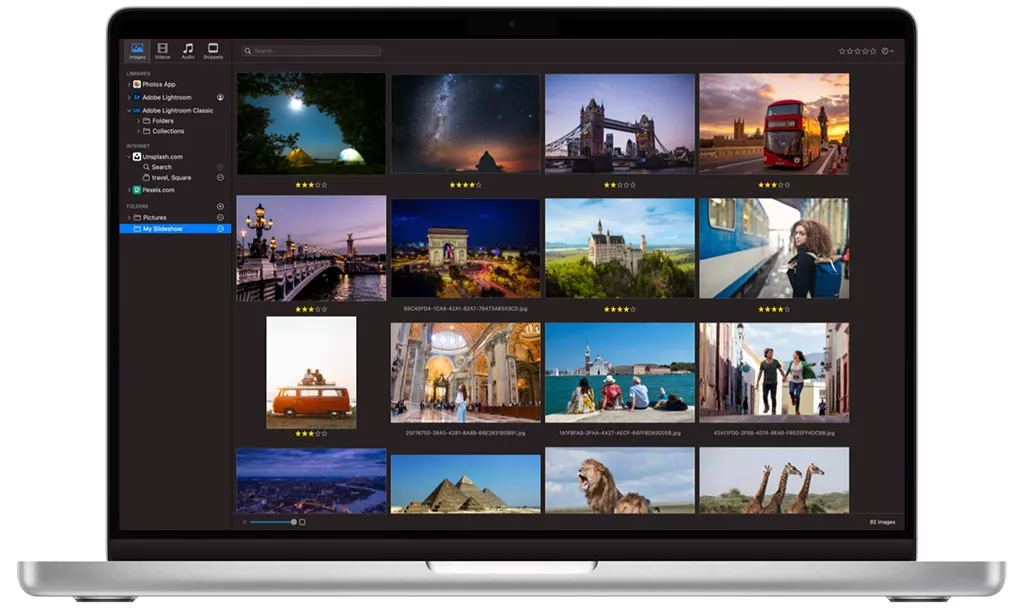
Export and Share your FotoMagico Slideshows
NOTE: This tutorial is out of date, dealing with older versions of FotoMagico. Since version 2.2 FotoMagico has a built-in Sharing Assistant.
Contents
- About Quality
- Basics
- Sharing Your Slideshow
- Presenting From Within The Application
- Exporting to QuickTime Movie: HD 720p and HD 1080p Presets
- Creating a DVD
- Required Settings and Configuration
- Aspect Ratio and Stage Size
- One Step DVD Creation
- Preparing a QuickTime Movie for DVD
- Exporting to an iPod
- Exporting for Web
- 4:3, used by many digital still cameras, TV sets and computer displays
- 3:2, used by traditional analog cameras with negative or slidefilm
- 16:10, used by Apple Cinema Displays, flatscreen iMacs and recent Apple notebooks
- 16:9, used for HD and widescreen TV sets.
- 10-15 fps, used for movies embedded in webpages
- 24 fps, used in film
- 25 fps, used for PAL video and TV
- 29.97 or 30 fps, used for NTSC video and TV
- 60 fps, used for FotoMagico and some HD devices
About this article
The following tutorial familiarizes you with the do's and don'ts of sharing your slideshow with users who don't have a way of viewing your slideshows with FotoMagico. We will show you with different alternative presentation devices and media, e.g. DVD player, TV set, iPod, Web etc.
0. About Quality - or: The Shock First
Q: I have completed my first slideshow. What settings do I have to use to create a DVD at the highest quality possible?
This is by far the most frequent support request regarding FotoMagico. What users really mean to ask is this: "How do I get the quality I see with FotoMagico to a DVD to be presented on a DVD player and TV set?" Well - you can't. No kidding. It's technically impossible. It would be like playing a classical symphony at Dolby Digital® surround sound quality over a telephone and expect the person on the other end of the line to hear the same as you're hearing. It simply doesn't work.
But - you still have a number of acceptable options to share your slideshow with audiences who don't have a Macintosh with FotoMagico installed on it. On the following pages, we'll show you how to accomplish that and what settings to use for the different options in order to get the best possible quality. Exporting slideshows is a highly complex subject with quite a few pitfalls. Wrong expectations often lead to disappointment about the resulting export quality. Understanding the basics helps you to avoid these disappointment due to wrong expectations. Please read all paragraphs carefully to make sure you understand the details correctly.
Note: If you need maximum quality for your FotoMagico slideshow there is only one way: Doing a live presentation with FotoMagico on a reasonably powerful Macintosh with a good graphics card.
1. Basics
1.1. Image Size
FotoMagico will present your images at maximum quality available. The quality you will see depends on two factors: The quality of your original image and the size of your display. An image taken with a 10 megapixels camera will look better than the same image taken with a 2 megapixels camera. The same is true for the display. Viewing an image on a 640x480 pixels screen does not look as spectacular as viewing the same image on a 30" Apple Cinema display at 2560x1600 pixels.
The following diagram compares different display sizes:
A 30" Apple Cinema Display can display a lot more pixels than an iPod. It is easy to see that your slideshow will look much better on a larger screen.
To achieve the best possible quality you have to make sure that your image files are large enough to cover the entire screen space available. A simple rule of thumb is to make sure your image files are at least as wide and high as the display you are using for the presentation. If you are using pan & zoom animation (Ken Burns effect), then the image file should have even larger dimensions than the display in order to be able to zoom into the picture without sacrificing quality.
Let's give you an example: You are using the 20" flat screen iMac which has a resolution of 1680x1050 pixels. If you want to zoom into your images with a 2x factor, the image files should have at least twice the resolution of your display, i.e. 3360x2100 pixels. A seven or eight megapixels camera meets this requirement.
Users often ask our customer help desk: "What dpi resolution should I use in FotoMagico?". The answer is simple: Dots per inch don't concern FotoMagico, only the total amount of pixels is important. It simply doesn't matter whether your image has 72dpi or 1200dpi, as long as it has enough pixels.
1.2 Aspect Ratio
The aspect ratio of an image describes its proportions, i.e. the ratio of width and height. Common aspect ratios are:
What happens, if you display an image with a given aspect ratio (e.g. 16:9) on a display with a different aspect ratio like a 4:3 television screen or an iPod? Image proportions will not match, so you have two choice to make the image fit the screen:
In the first case (left side) the image is cropped. You sacrifice part of the image, but you will get good quality for the remaining parts. In the second case (right side) the image is scaled down order to fit it on the screen in its entirety. Above and below the image, the screen is filled with black bars. This is also called "letterbox mode". In this case you do not lose any part of the image, but overall image quality is slightly degraded. You have to make a choice as to what is more tolerable. It depends largely on personal taste.
For more information on aspect ratios, letter-, pillar- or windowboxing, please find this very informative article.
When you export a slideshow that was originally designed on a 20" iMac (16:10 aspect ratio) to an iPod (4:3 aspect ratio), we also have an aspect ratio mismatch. In this case, you'll have to make the same decision: Either sacrifice part of the image or lose some image quality.
1.3 Framerate
In movies the impression of motion is emulated by rapidly repeating a sequence of still images. If there is a small number of repititions per second, the resulting motion will appear jerky. As number of repititions per second increases, the human brain will not see separate images anymore, but perceive it as a smooth motion. FotoMagico uses the same technique to create motion when doing a pan & zoom animation. It displays the same image several times a second. The more often it repeats, the better it will look.
The framerate specifies how often an image is displayed per second, and it is measured in frames per second (fps). Common framerates are:
As you can see, FotoMagico uses a very high framerate to achieve smooth motion during a live presentation. When you export a slideshow, you have to consider some technical constraints, however. If you burn your slideshow to DVD, the framerate has to be reduced to the number compliant with DVD. When exporting a movie for a web page, the framerate has to be reduced as well, so that download times remain acceptable.
Reducing the framerate will always lead to more jerkiness and thus less attractive motion. To alleviate the problem you can use motion blur to "hide" the jerkiness.
Movie at 12 fps with Motion Blur
1.4 Color
Displaying images with accurate colors is fairly hard to achieve. Cameras "see" colors differently than the human eye does and different computer screens display color in different ways. To solve this problem Apple introduced a color management technology called ColorSync. This technology ensures color integrity from the moment it is captured by a digital camera to display on screen. As this technology has been perfected over the years, it delivers very good results.
FotoMagico uses ColorSync to ensure that colors are being displayed correctly. However, upon exporting your slideshow, colors are no longer controlled by ColorSync. As a result, color integrity can no longer be guarranteed. For example, a slideshow burned to DVD and displayed on a TV set may look acceptable, if the TV's color controls are at their correct settings. When exporting a slideshow for display on a web page and then viewing this web page on a Windows browser, the image might look a lot darker, as Windows uses a different gamma value than Mac OS X.
Note: When you export a slideshow, color may not appear accurate anymore.
2. Sharing Your Slideshow
2.1. Presenting from within the Application
As we have stated above: Nothing beats presenting your slideshow from within FotoMagico on a large display or a high-res projector using a high-end Macintosh computer or MacBook Pro. This of course requires all these devices to be present plus a FotoMagico license (demo license suffices). However, there may be scenarios, when either any of these components isn't available or when you need to distribute your slideshow without knowing, what your audience will view it on. In this case, you may find the following export formats coming in handy.
2.2. Exporting to QuickTime Movie: HD 720p and HD 1080p Presets
Whenever you're exporting your FotoMagico slideshow, the resulting file will always be a QuickTime movie. However, it may vary in quality and size depending on the target device. Using any of the shipping high definition presets will render a QuickTime movie with the highest quality possible for each device.
There are two emerging high definition TV standards (HDTV): The first one is known as HD 720p and delivers 1280 by 720 pixels. The second is called HD 1080p and comes at 1920 by 1080 pixels. The p stands for progressive and signifies that each line of the image is available. The other option would be called interlaced and omits every other line. Interlaced is mainly used to reduce the amount of data being generated, but it also leads to lower quality, especially when motion is involved. FotoMagico only uses progressive HD.

Let's look at how you produce these:
Before exporting with any of these two presets, make sure that your stage size settings match the intended output format. Select Settings from the menu Slideshow which will present you with a menu populated with several predefined settings.
Choose HD 720p or HD 1080p as shown in the image. This will set the stage area to the same dimensions we will need for exporting.
Note: If you choose differing dimensions at this point or enter custom values for stage size, you are bound to see black bars or cropping of your images in the exported file.
Proceed by authoring your slideshow. For the actual export, choose Export from the File menu.

In the following dialog you will see another popup presenting you with a choice of export formats for different devices. Select for HD 720 or for HD 1080p.

Note: The export dialog box sports a checkbox labelled Advanced. Leave it unchecked at this point, as this setting requires knowledge, which we will cover further below.
Choose a folder where to save the exported movie and click Export. Rendering the export movie can take quite some time (depending on the length of your slideshow). You may want to do this when you don't need to work at your computer.
The resulting file can be opened and played with the QuickTime Player application, in full screen mode if desired. Hence, it is an appropriate option for presenting your FotoMagico slideshow, if FotoMagico can't be installed on the target computer, e.g. because it's a Windows PC or laptop. However, presenting this movie file requires a fairly high performing computer with a high end graphics card, as the decoding and displaying of HD images has to be done in real time.
Note: You may alternatively burn this HD movie to a data DVD to transfer it to other computers. It is not advisable to burn a video DVD, as quality will be reduced to NTSC or PAL levels. If you want to create a video DVD compatible with standard consumer DVD players, please refer to the next chapter.
2.3 Creating a DVD
2.3.1 Required Settings and Configuration
There are two approaches to creating a DVD with FotoMagico: First, there is a fully automated one, which is being explained in chapter 2.3.3. A rather hands-on approach, which also offers more options for modification and finetuning, is described in chapter 2.3.4. Before choosing any DVD creation method, open Preferences from the FotoMagico menu. In the following dialog, click Burning and select, which TV standard applies in your country. Also, you get to choose between installed burning software, e.g. iDVD by default or Toast, if you prefer that. By choosing one of the available options here, FotoMagico will "know" which application to send the prepared export file to.

Note: With either of above mentioned options, the conversion from QuickTime to an MPEG-2 stream will most likely result in considerable loss of quality over your original slideshow! This is due to the compression and cutting down on data rate to comply with the industry standard definition of MPEG-2. This second conversion is completely beyond FotoMagico's control, regardless of how much quality you render the QuickTime file at.
2.3.2. Aspect Ratio and Stage Size
Before proceeding with either one of above DVD creation options, make sure again, you have set stage size to match the target presentation aspect ratio. For each TV Standard (NTSC or PAL) there may either be a 4:3 or 16:9 aspect ratio, which you get to select from the popup menu in the stage size settings dialog:
As standard and widescreen dimensions vary slightly between NTSC and PAL, we offer a preset for each of them.
Note: By no means override dimension settings in presets by customized values! This applies even when you think that our predefined settings are incorrect. They are not.
The reason for us to define settings that appear to be different from the standard format is due to pixel aspect ratios, which differ between a computer screen (square pixels) and a TV set (rectangular pixels). That means that an image at correct proportions on a computer screen would appear horizontally stretched when being viewed on a TV set. In order to even this out, we have calculated stage size settings accordingly.
2.3.3. One Step DVD Creation
When you have completed configuration as discussed in chapters 2.3.1 and 2.3.2, all you have to do is select Burn DVD from the File menu. You need to have at least one document opened in FotoMagico for the menu command to be active. FotoMagico will then automatically process the following steps:

Depending on duration of your slideshow, image sizes being used as well as hardware configuration, this may take quite a while. You may want to let this process finish without working in another application and return to your computer later on when rendering has completed. For your convenience, you will find a small status line telling you the estimated amount of remaining time needed to render your slideshow document.
Upon completion FotoMagico will send the rendered QuickTime movie to your preferred burning application as selected in chapter 2.3.1 and open it in a new project window.

You then hit the Burn button (iDVD) or Record button (Toast), insert a blank disc and wait for the burn process to finish. Please note that this step may take significant amounts of time as well as the QuickTime movie has to be re-encoded into an MPEG-2 data stream.
Note: If you need to apply modifications to themes and templates shipping with iDVD or Toast, please refer to the manufacturer's documentation.
2.3.4. Preparing a QuickTime Movie for DVD
In addition to the automated burning of a DVD, FotoMagico can also export to a QuickTime movie file suitable for conversion into an MPEG-2 stream.
Note: Conversion from QuickTime to an MPEG-2 stream will most likely result in considerable loss of quality over your original slideshow! This is due to the compression and cutting down on data rate to comply with the industry standard definition of MPEG-2. This second conversion is completely beyond FotoMagico's control, regardless of how much quality you render the QuickTime file at.
Please select the Export... command from the File menu. In the following sheet, select for DVD.

The resulting file will respect the settings you applied in 2.3.1, i.e. NTSC or PAL as TV standard and send the file to your preferred burn application, if you check Open in.
2.4. Exporting to an iPod
As Apple introduced video playback capabilities with their fifth generation of iPods, some users take advantage of that feature in order to view small screen versions of their FotoMagico slideshows. We have taken that into account with the accordingly named export preset that renders a QuickTime file respecting the supported framerate and aspect ratio available on an iPod. Again, after having completed authoring of your slideshow, initiate the export by selecting Export from the File menu. Choose preset for iPod from the popup menu in the export dialog.
If you have set your stage size to a widescreen format (16:9), FotoMagico will export to a file using letterbox format or crop the image depending on your choice. The resulting video stream will look similar to the preview picture to the left in the image below:

You may wish to import the resulting file into your iTunes Library in order to have it synced with your iPod next time you connect it to your Macintosh.
2.5. Exporting for Web
Another popular platform for viewing media content is the web. Even personal websites come with blogs, audio- and videocasts these days and are a media rich experience. Hence, a lot of users wish to have their FotoMagico slideshows run on the web, e.g. their MobileMe accounts. A suitable file for display on a web site is being exported by choosing the for Web preset in the export dialog that you land at after selecting Export from the File menu. Whatever aspect ratio you applied in the stage size settings dialog, FotoMagico will automatically produce a small web movie at an equal aspect ratio. The resulting movie is optimized for download and requires Quicktime 7 being installed on your computer.


